Install & add your contact
☐ Open the PrepMyGifts listing, select your store and review the requested access before installing.
☐ Enter a contact name, work email and responsibility. Phone is optional.
☐ Save the app contact and continue. Reopen the app from Shopify → Apps when needed.
Choose your plan
☐ Review the features and current recurring fee for your chosen plan.
☐ Check trial eligibility and message usage charges separately from the monthly subscription.
☐ Review and approve the displayed Shopify agreement, then return to the app.
Wrapping & gift bags
☐ Add a clear name, shopper price, description and representative picture to a wrapping or bag option.
☐ Save the option and check its Active control. A wrapping option needs a picture before activation.
☐ Enable the matching service on Home. An enabled service and an active option are both needed.
☐ Check the selected option and its price in the storefront.
Text, audio & video
☐ Open the price editor for each message format you offer and enter its shopper price.
☐ Save each price and wait for the update confirmation.
☐ Check active options and enable the Gift messages service on Home.
☐ Compare the displayed storefront charge with your saved price and review message usage in Billing.
Enable the theme embed
☐ Open your published theme in Shopify’s theme editor and choose App embeds.
☐ Enable PrepMyGifts gift options and review the product, cart and cart-drawer placement controls.
☐ Save the theme in Shopify, then open the actual storefront to verify the launcher.
Style the gift experience
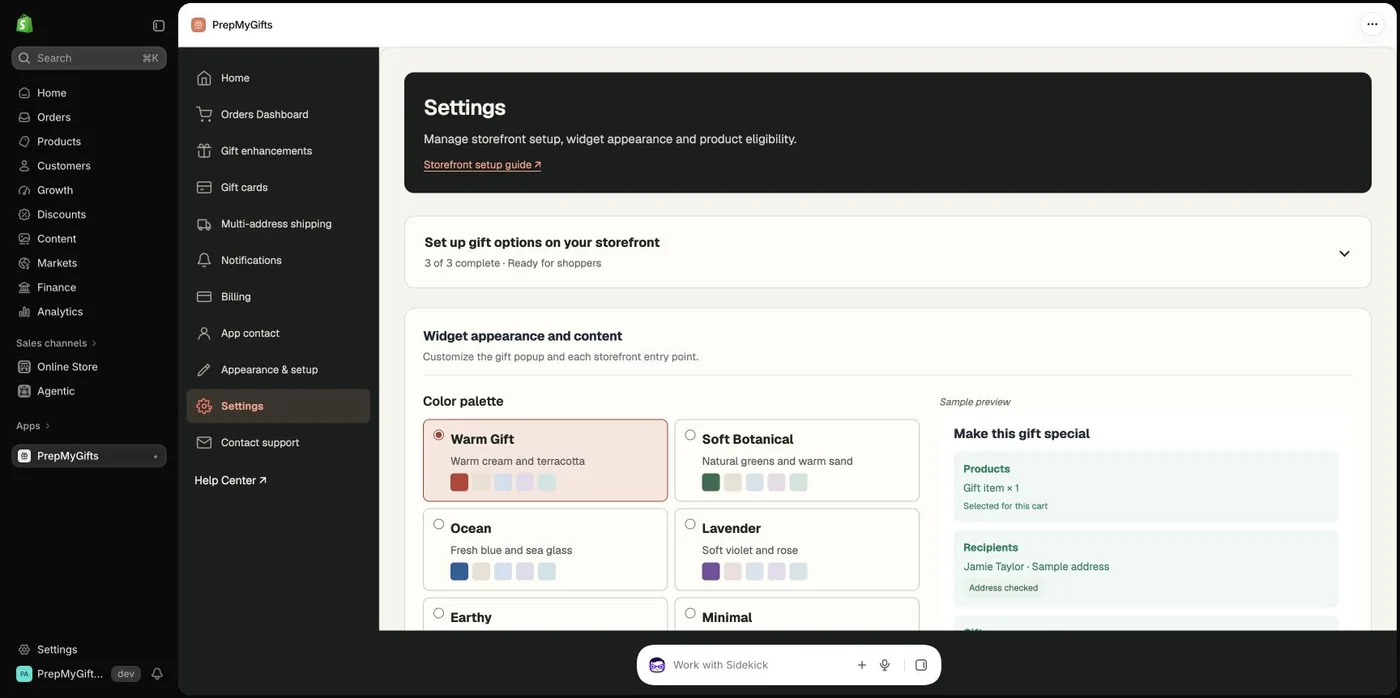
☐ Review store colors, readable fonts and gift-popup styling.
☐ Set the launcher label, supporting text, appearance and placement for each surface.
☐ Save appearance and content, then inspect the result on the published storefront.
Product exclusions
☐ Search for the Shopify product you want to exclude.
☐ Apply the exclusion and review the excluded-products list; it applies across variants.
☐ Compare an eligible product with the excluded product in the storefront.
Brand your gift emails
☐ Review the store sender name, reply-to address and email branding.
☐ Save changes, then inspect the available notification types and desktop/mobile previews.
☐ Send a controlled test through your intended delivery setup and inspect the destination inbox.
Product → cart → checkout
☐ Add an eligible product to the cart, then open gift options and select an available service.
☐ Check the product, variant, quantity, gift option and charge in the cart.
☐ On desktop and phone, open, close and reopen the popup; check normal purchase controls still work.
☐ Follow checkout and complete a development-store test order, or a controlled live-store test agreed with your team.
Sender → recipient message
☐ Create a complete message and verify the selected delivery timing and timezone.
☐ Test the supported later-completion path and its sender reminder where applicable.
☐ Open the recipient link on a phone and complete the gift-photo reveal when requested.
☐ Read the text or play the audio/video and check the actual destination inbox.
Prepare gift orders
☐ Find your paid test order using search and the date, enhancement or status filters.
☐ Open the order details and identify physical gift options, quantities and associated items.
☐ Confirm your team can prepare the materials and complete fulfillment in Shopify.
Reporting & account care
☐ Review message usage separately from shopper gift-option revenue and recurring app fees.
☐ Use the relevant order and transaction exports for reconciliation.
☐ Keep the app contact current and review the documented upgrade, cancellation and uninstall paths.