Import recipients from a CSV file
Upload a CSV to add many delivery addresses to one cart without entering them individually.
How to use it
- Open the selected cart’s recipient list and choose Download template.
- Replace the example row with your recipients. Use a full first and last name in Name, or separate First name and Last name columns. Fill Address 1, City, Postal Code and Country; add optional address/contact columns as needed.
- Save the spreadsheet as CSV and choose Import CSV. If an error appears, correct the named rows or columns and upload the file again.
- Wait for the recipients-added confirmation, then check the list. Review your file for repeated recipients before importing; the interface does not provide a duplicate-review screen.
Where to find it
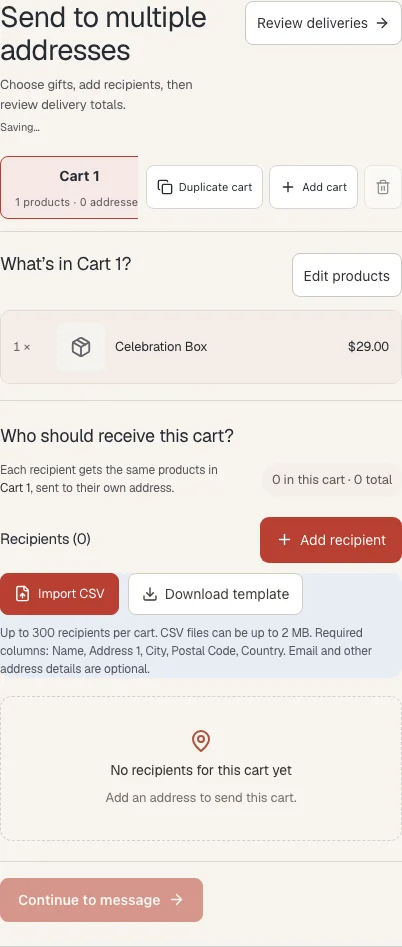
Download a sample CSV
Use the same columns as the storefront template. Example rows contain sample recipients; replace them with your own before importing.
Download recipient CSV templateWhat to know
A CSV can be up to 2 MB. Existing and imported recipients together cannot exceed 300 in the selected cart. Use two-letter country codes such as US and keep leading zeros in postal codes.
Wait while the import uploads and saves. If you are unsure whether it completed, inspect the recipient list before importing again; a second import can add the same addresses again.
What happens next
The imported addresses join the selected cart. Shopify still checks them during delivery calculations.
Was this helpful?
Still need a hand? Contact support below.