Publish a dedicated gift-card page
Publish a dedicated Shopify page where shoppers can choose and send your native gift cards.
How to use it
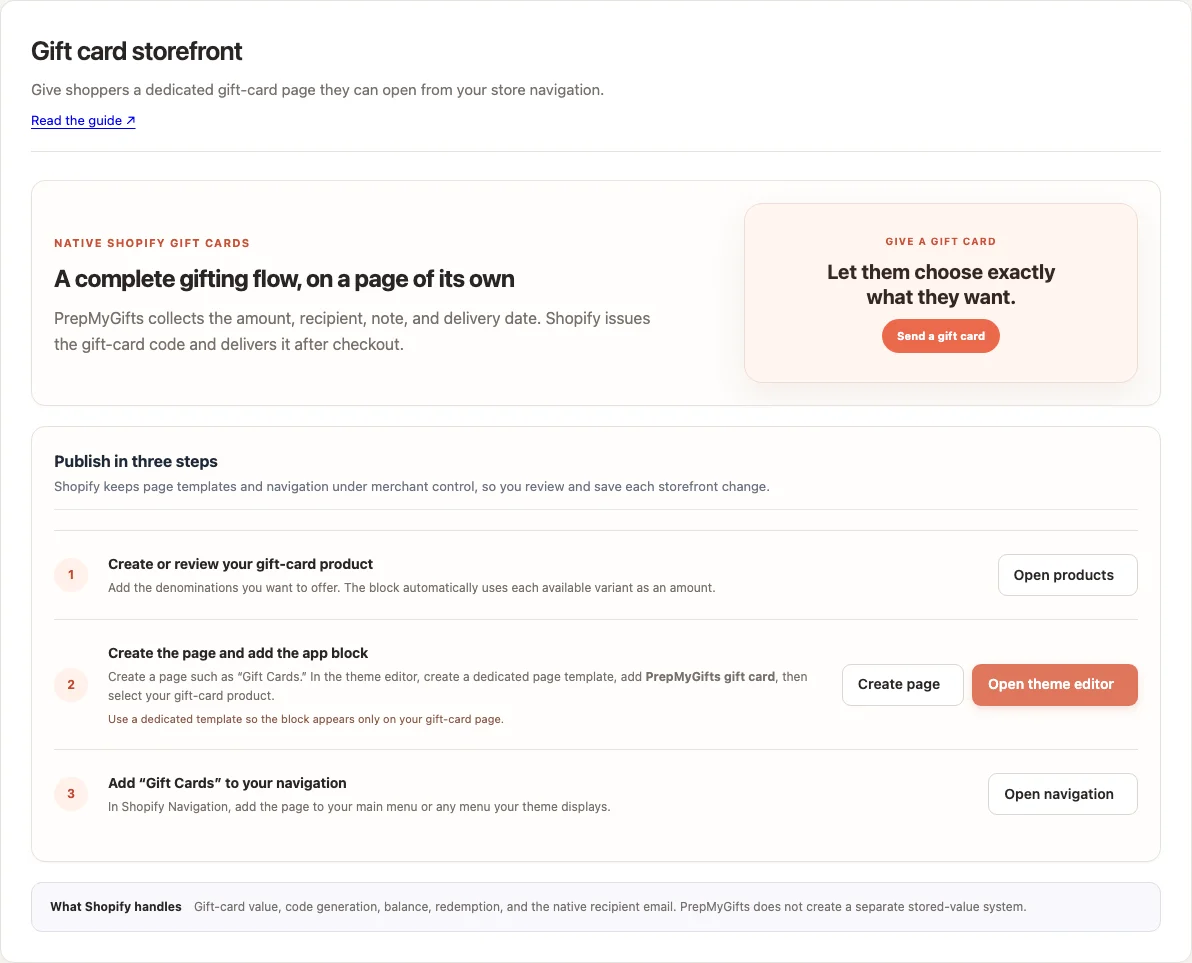
- Open PrepMyGifts → Gift card storefront and review or create your Shopify gift-card product and denominations.
- Create a page such as Gift Cards in Shopify.
- In the theme editor, create a dedicated page template, add the PrepMyGifts gift card app block and select the gift-card product. Save and assign that template to the page.
- Add the page to the appropriate store navigation menu and test it.
Where to find it
What to know
Use a dedicated template so the gift-card block does not appear on unrelated pages. Shopify controls template and navigation changes, so you review and save them.
The block uses the product’s available variants as gift-card amounts. The native gift-card email is handled by Shopify.
What happens next
Shoppers can open your Gift Cards page from the menu and use the store’s checkout.
Was this helpful?
Still need a hand? Contact support below.