Manage physical greeting cards
Offer physical greeting cards shoppers can add to their order. You set each card’s name, price, description and picture.
How to use it
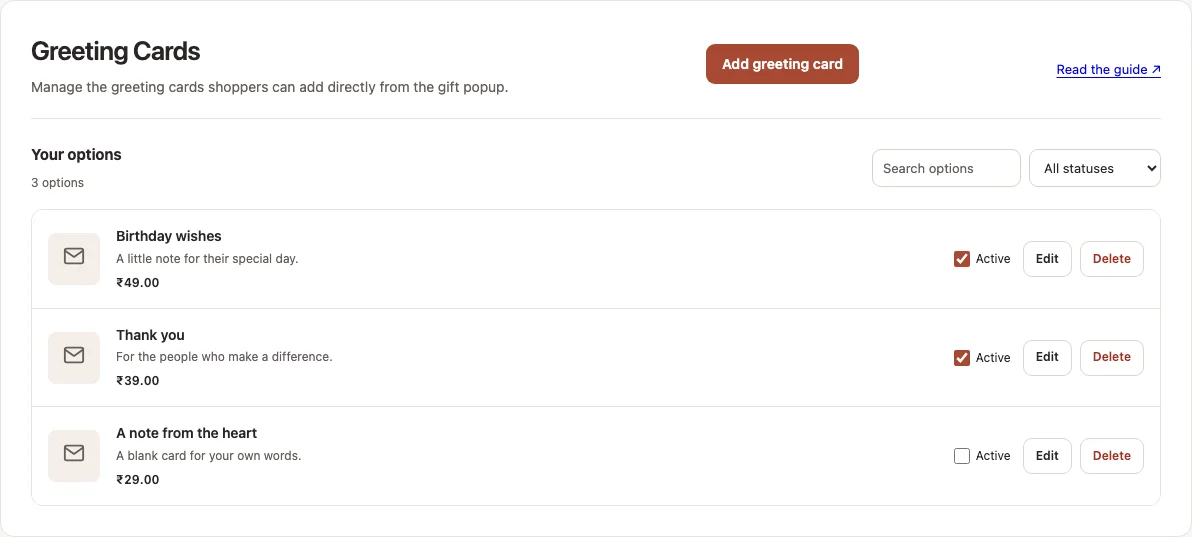
- Open PrepMyGifts → Greeting Cards.
- Choose Add greeting card. Enter a name and price in your store currency. Add a description to help shoppers choose; it is optional.
- Add a picture if needed, then choose Save greeting card. Check the option’s Active control in the list.
- On Home, enable Greeting Cards. Open a storefront product to check the option and price in the popup.
- Use Edit to update an option, or clear its Active control to stop offering it. Check the storefront again after saving.
Where to find it
What to know
Your store supplies and fulfills physical greeting cards. You can disable a card without changing cards already purchased.
A greeting card is different from a Shopify gift card with a redeemable balance. Adding a physical card does not automatically add a text, audio or video gift message.
What happens next
Active options appear in the gift popup when their service is enabled and the store’s product checks allow them.
Was this helpful?
Still need a hand? Contact support below.