Customize widget colors and appearance
Choose a shared visual style for gift options and the multi-address experience.
How to use it
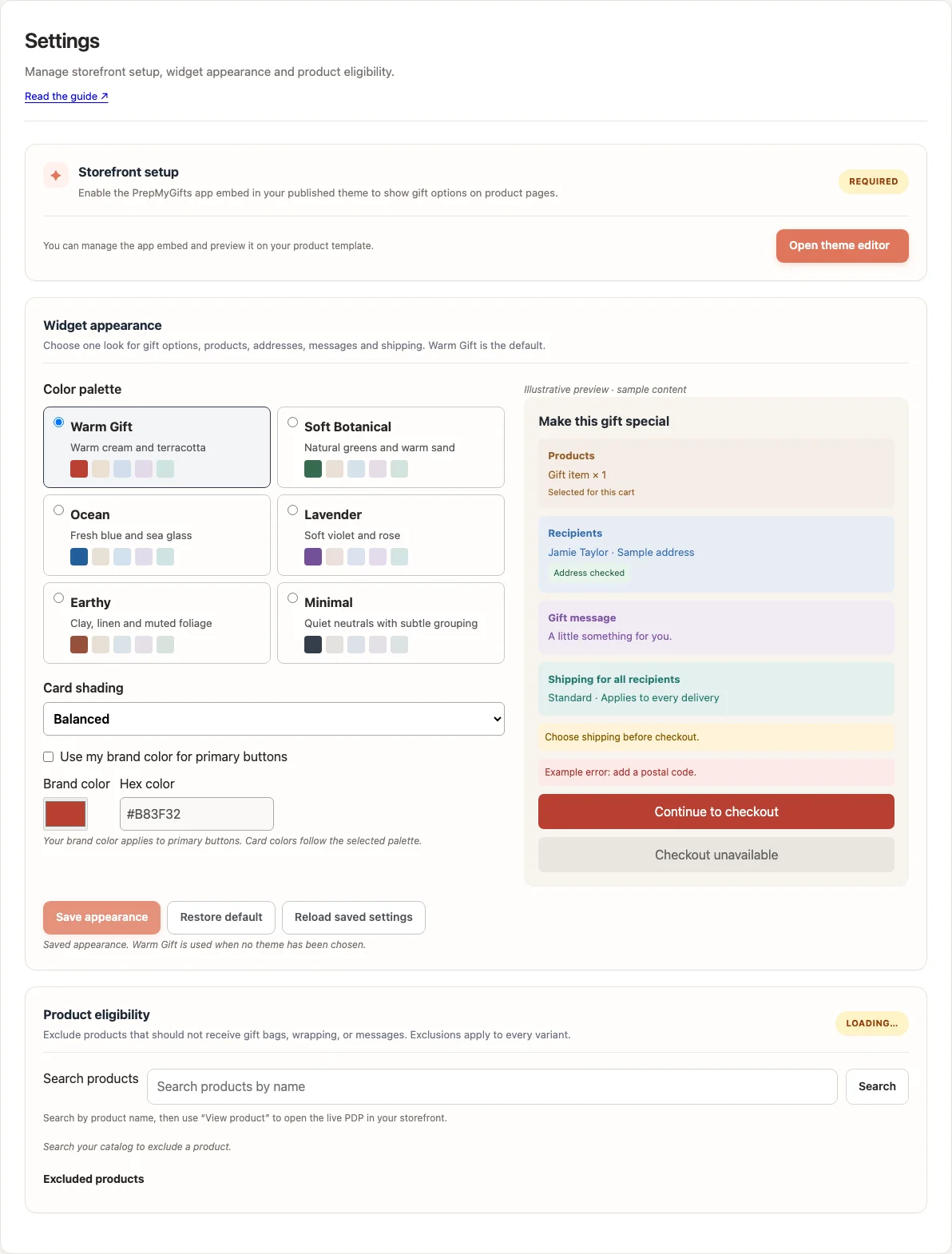
- Open Settings → Widget appearance and wait for the saved settings to load.
- Choose a color palette and Card shading: Subtle, Balanced or Expressive.
- If desired, enable your brand color for primary buttons and enter a valid hex color.
- Inspect the preview, choose Save appearance and check the storefront.
Where to find it
What to know
Warm Gift with Balanced shading is the default. Choose Restore default to preview that look, then Save appearance to apply it.
Set widget colors in PrepMyGifts → Settings. The preview uses example content, so check a real storefront page after saving.
What happens next
The saved palette is shared across the supported gift and multi-address surfaces.
Was this helpful?
Still need a hand? Contact support below.